The UNIX shell provides a host of extremely useful utilities for modifying text. This OS X Automator service makes all of them available for filtering text in all OS X applications.
This can be handy for performing quick operations, like replacing text with regular expressions, sorting lists or swapping fields around.
When triggered, the service requests a command to use for filtering, then runs the command and replaces the selected text with the result.
Some sample operations:
- Sort lines alphabetically/numerically: sort or sort -n
- Change to lowercase: tr "[:upper:]" "[:lower:]"
- Replace a spelling mistake, taking care of case: sed -E 's/([tT])eh/1he/g'
- Re-order elements in a tab- or comma-separated list: awk '{print $2 $1}' or awk -F, '{print $2 "," $1}'
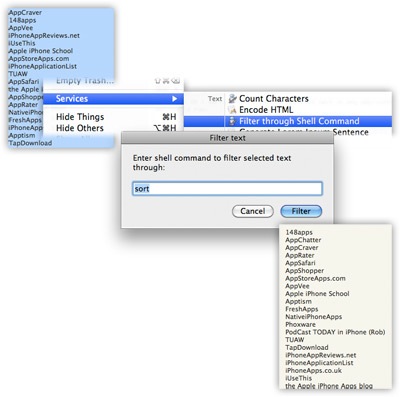
Put it in Library/Services, and it should appear in the ‘Services’ menu.
Pingback: 10.6: Service to filter selected text using a shell command « Apple News Daily
Hi,
Any chance we could get GUI for commands in future? :-) There is not so many comand line friens as mose clickers :-)
Hi Frantisek,
Actually, this is more targeted for the command line-fiends ;-)
There appear to be a few products out there that are more targeted for normal users – A quick glance reveals two possibilities (I haven’t tried them): Text Wielder and maybe TextExtras.
Cheers!
i give up, can you make me one that do not ask for input but just runs “sed ‘s/\./ /g;s/\-/ /g;s/\_/ /g'” thanks in advance
Hi Nikola,
You can make that change pretty easily – if you double-click the workflow, it’ll open up in Automator; then you can replace all the text in the “Run Shell Script” panel with just your command (“sed ….”). Then save, and you’re done.
thanks
i tyred modifying yours (replacing sort etc) but it never worked..
it never occurred to me to replace all text, guess i’ll never understand applescript :)
I installed ‘Filter Through Shell Command’ in my user Library/Services, not the root Library/Services on my Mac OS X 10.6.3, but I do not see the ‘Filter Through Shell Command’. Does this run on OS X 10.6.3? What am I doing wrong?
Thank you.
Hi Ron,
That should do it – have you tried rebooting or logging out and back in again? There’s a chance you may also need to specifically enable it in Keyboard Preferences (in System Prefs)
I did reboot and ‘Filter through Shell Command’ is checked under ‘text’ in Keyboard preferences and I still do not see the command when I go to Services.
What app are you trying to use it from? I’ve noticed some apps are a little dumb in the way they report the data type to the Services menu provider. For example, if I select the text I’m currently typing in Chromium, nothing comes up in Services at all. Try TextEdit (copying and pasting into it, if need be)
That works.
Thanks.
Removing the cat in the last line made it work for me. Thanks!
This is great! Except it doesn’t seem to work in BBEdit, and Outlook (which unfortunately has the best AppleScripting support of any of the email clients) oddly loses window focus. Have you tried it with either of those apps?
Not sure about this, I’m afraid – it does weird focus things for me in a couple apps too. Bit busy to look into it at the moment, but I’ll keep it in mind.