Blog

Tag Archives: Code

Presenting TPAudioController, the iOS audio engine library

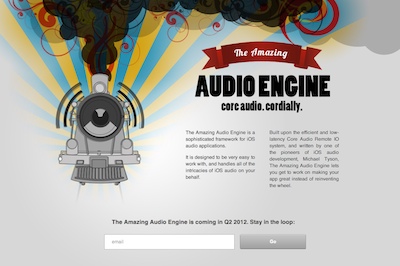
Icon medium TPAudioController is a flexible, easy-to-use and complete audio engine for iOS, built upon Core Audio, which handles all setup and management of the low-level Remote IO audio unit system, with support for capturing input via the microphone, automatic mixing of multiple audio signals with per-channel volume and pan controls, and capturing audio system output for session recording.

The library, which is also the engine behind our popular live looper app Loopy, defines protocols for recording, playback, and audio output capture for easy inclusion with existing or new projects.

It’s designed to be really easy to work with, in order to get new audio projects off the ground quickly, and to dramatically cut down the iOS audio learning curve.

Find out more, download an evaluation version of the framework and a complete sample synth app here.

Also tagged , , , , | Leave a comment

Circular (ring) buffer plus neat virtual memory mapping trick

I’ve just updated my C circular buffer implementation, adopting the trick originally proposed by Philip Howard and adapted to Darwin by Kurt Revis: A virtual copy of the buffer is inserted directly after the end of the buffer, so that you can write past the end of the buffer, but have your writes automatically wrapped around to the start — no need to manually implement buffer wrapping logic.

This dramatically simplifies the use of a circular buffer — you can use chunks of the buffer without any need to worry about where the wrap point is.

See the new implementation, which is thread-safe with one consumer and one producer, with no need for locks, making it perfect for use with high-priority Core Audio threads, on GitHub: TPCircularBuffer.

There’s a basic example of its use over on the original post.

Also tagged , , , | Leave a comment

Seamlessly manage portrait and landscape view controller layouts

A headache-inducing scenario: I’m working on a view controller, and I realise that in order to support landscape and portrait modes, I’m going to need to provide two different layouts.

So, I create two different views within the nib, one portrait, one landscape, each with the same view hierarchy, but with a different layout.

When the orientation changes, I set self.view to the appropriate view. I initialise both views on load, and keep both of them synced to properly reflect the app’s state — basically, I’m double-handling everything, which bloats my code and increases the chance I’ll make a mistake.

So, here’s an easier way: Rather than maintaining two separate view hierarchies and switching between them when the orientation changes, why not just change the layout of one single view hierarchy? The only changes between the portrait and landscape views are layout changes, so if we can extract just the layout information from each view, then we don’t have to worry about maintaining both view hierarchies.

Basically, we’re talking about using each view version as a layout template only.

That’s what TPMultiLayoutViewController class does. It’s a drop-in UIViewController subclass that automatically manages switching between different view layouts for portrait and landscape orientations, without the need to maintain view state across two different view hierarchies.

It works by defining portraitView and landscapeView outlets which it traverses upon loading the nib. It matches each subview element to its counterpart in the other layout (based on tag, target/action, title, etc.), and stores just the layout attributes of each element.

Then, when the orientation changes, the view hierarchy is traversed and these layouts are applied to each subview.

To use it,

  1. Set the superclass for your view controller to TPMultiLayoutViewController.
  2. In Interface Builder, create two different views: one for portrait orientation, and one for landscape orientation.
  3. Attach your portrait orientation root view to the “portraitView” outlet, and the landscape orientation root view to the “landscapeView” outlet.
  4. Attach one of the views (whichever you prefer) to the “view” outlet, and connect any actions and outlets from that view.

Grab it from the TPMultiLayoutViewController GitHub repository, and let me know what you think.

Also tagged , , , | 4 Comments

A drop-in universal solution for moving text fields out of the way of the keyboard

There are a hundred and one proposed solutions out there for how to move UITextField and UITextView out of the way of the keyboard during editing — usually, it comes down to observing UIKeyboardWillShowNotification and UIKeyboardWillHideNotification, or implementing UITextFieldDelegate delegate methods, and adjusting the frame of the superview, or using UITableView‘s scrollToRowAtIndexPath:atScrollPosition:animated:, but all the proposed solutions I’ve found tend to be quite DIY, and have to be implemented for each view controller that needs it.

I thought I’d put together a relatively universal, drop-in solution: UIScrollView and UITableView subclasses that handle everything.

When the keyboard is about to appear, the subclass will find the subview that’s about to be edited, and adjust its frame and content offset to make sure that view is visible, with an animation to match the keyboard pop-up. When the keyboard disappears, it restores its prior size.

It should work with basically any setup, either a UITableView-based interface, or one consisting of views placed manually.

Read More »

Also tagged , , | 49 Comments

Easy AAC compressed audio conversion on iOS

From the iPhone 3Gs up, it’s possible to encode compressed AAC audio from PCM audio data. That means great things for apps that deal with audio sharing and transmission, as the audio can be sent in compressed form, rather than sending huge PCM audio files over the network.

Apple’s produced some sample code (iPhoneExtAudioFileConvertTest), which demonstrates how it’s done, but their implementation isn’t particularly easy to use in existing projects, as it requires some wrapping to make it play nice.

For my upcoming looper app Loopy, I’ve put together a simple Objective-C class that performs the conversion of any audio file to an AAC-encoded m4a, asynchronously with a delegate, or converts any audio provided by a data source class (which provides for recording straight to AAC) and I thought I’d share it. Read More »

Also tagged , , | 28 Comments

A simple, fast circular buffer implementation for audio processing

Circular buffers are pretty much what they sound like – arrays that wrap around. They’re fantastically useful as scratch space for audio processing, and generally passing audio around efficiently.

They’re designed for FIFO (first-in-first-out) use, like storing audio coming in the microphone for later playback or processing.

Consider a naive alternative: You copy the incoming audio into an NSData you allocate, and then pass that NSData off. This means you’re allocating memory each time, and deallocating the memory later once you’re done processing. That allocation incurs a penalty, which can be a show-stopper when part of an audio pipeline – The Core Audio documentation advises against any allocations when within a render callback, for example.

Alternatively, you can allocate space in advance, and write to that, but that has problems too: Either you have a synchronisation nightmare, or you spend lots of time moving bytes around so that the unprocessed audio is always at the beginning of the array.

A better solution is to use a circular buffer, where data goes in at the head, and is read from the tail. When you produce data at the head, the head moves up the array, and wraps around at the end. When you consume at the tail, the tail moves up too, so the tail chases the head around the circle.

Here’s a simple C implementation I recently put together for my app Loopy: TPCircularBuffer Read More »

Also tagged , , , | 22 Comments

Easy Delayed Messaging using NSProxy and NSInvocation

Sometimes it’s necessary to perform an action some time in the future, whether it’s disabling a button for a certain time interval after it’s pressed, performing an animation after a short wait, or triggering a reload of some data.

NSTimer is great for that purpose, as well as repeatedly performing actions, but it’s most convenient utility method, scheduledTimerWithTimeInterval:target:selector:userInfo:repeats: only takes one ‘id‘ argument. Using the NSInvocation equivalent, scheduledTimerWithTimeInterval:invocation:repeats: requires creating and setting up the NSInvocation itself, which is always verbose and a pain.

NSProxy is a wonderful little construct that lets us interact with it like we were talking to the original object. I first learned how it works from a post by Shaun Wexler which shows an easier way to send a message on the main thread, by using the NSInvocation given via the NSProxy’s forwardInvocation: method. The same technique can be used to easily create a configured NSTimer.

So, instead of some awful thing like this:

NSInvocation *i = [NSInvocation invocationWithMethodSignature:[mapView methodSignatureForSelector:@selector(selectAnnotation:animated:)]];
[i setTarget:mapView];
MKAnnotation *annotation = view.annotation;
[i setArgument:&annotation atIndex:3];
BOOL flag=YES;
[i setArgument:&flag atIndex:4];
[NSTimer scheduledTimerWithTimeInterval:0.5 invocation:i repeats:NO];

We can do this:

[(MKMapView*)[TPTimerProxy scheduledTimerProxyWithTarget:mapView timeInterval:0.5 repeats:NO] selectAnnotation:view.annotation animated:YES];

Here’s the juice: Read More »

Also tagged , , | Leave a comment

A trick for capturing all touch input for the duration of a touch

If you’ve ever tried to implement an interactive control that makes use of gestures within a UITableView, or tried to implement a view that you can drag around, like pins on a MKMapView, you’ll know that you’re either generally thwarted by the scroll view (and the table view will just scroll, instead of your control getting the vertical drag gesture), or as soon as the touch moves outside the bounds of your view, you’ll get no more touchesMoved events, making for a very frustrating dragging interaction.

Some platforms give you a way to capture all pointer input for a time, but this doesn’t appear to be available out of the box on the iPhone — at least, I haven’t found it.

Here’s a way to make it work:

  • Subclass UIWindow and replace sendEvent: with your own method
  • Provide a way for objects to be registered with your UIWindow subclass to gain ‘touch priority’ – either add a property that taken a UIView/UIResponder, or add a mutable array to be able to register multiple views.
  • When you receive a touch began event, check to see if the touch was within the bounds of any ‘priority’ views – if they are, the view subsequently gets all events until the touch ended event.

    Read More »

Also tagged , , | Leave a comment