The Cartographer 1.2 is here, with awesome navigation features
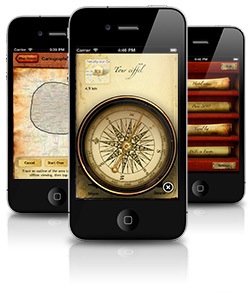 We’ve recently released version 1.2 of our vintage-styled Google My Maps app The Cartographer!
The new version introduces Navigon support, so you can get turn-by-turn navigation to any placemark on your map — this is great for researching then running errands, home or abroad. For example, need a new iPad? Search for “Apple Store” on Google Maps, click “Save To…” and choose a My Map (or use the new [Clipper](http://cartographer-app.com/#clipper) on any webpage with an address), then open it in The Cartographer, select the new placemark, and navigate there. Totally seamless.
The other new feature is an in-app compass which provides bearing and distance information to the selected placemark. A needle points to your destination, while the dial shows which way’s north. Particularly useful for hiking — we used this just the other week in Exmoor National Park, and it was indispensable.
Grab [The Cartographer 1.2 on the App Store](http://itunes.apple.com/app/the-cartographer/id393312081?mt=8), or [find out more](http://cartographer-app.com).
Read More