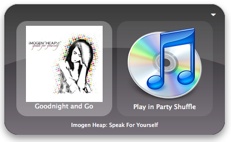
 I tend to play a fair bit of music while I’m working; sometimes I want to hear something in particular, and sometimes I’m happy to just let the shuffle do it’s thing (although some tracks I’ll skip).
Quicksilver makes all this really easy when used in combination with iTunes’ Party Shuffle. Firstly, I have the iTunes module installed in Quicksilver. Then, I’ve set up the hotkeys Ctrl-Shift-Left/Right for prev/next track, and Ctrl-Shift-Space for pause, first, for quick skipping of tracks, mostly. Also, I have Ctrl-Shift-Up for Search Artists, which lets me quickly select an artist/album/track to play.
I get iTunes playing the Party Shuffle playlist, which does nice things like plays more popular tracks more often (although you have to rate tracks to make that work – try AutoRate).
When I want to hear something specific, I press Ctrl-Shift-Up, type an artist, select an album, perhaps, and hit enter – my default action is ‘Play in Party Shuffle’, which puts the selected tracks at the start of the shuffle playlist and starts playing. So, that music starts playing immediately, then, once it’s finished, iTunes goes back to shuffling tracks, so the music keeps coming without further intervention.
If I wanna just cue tracks, I can select music, then tab to the next field and press ‘n’, which jumps to ‘Play Next in Party Shuffle’ – that cues up the selected tracks for play after the current track finishes.
I can select more than one track using Quicksilver’s ‘comma’ trick, selecting an item, then pressing comma to add it to the list. If I’m searching for a particular track by name, I bring up Quicksilver the normal way (Ctrl-Space), type ‘tr’ to ‘Browse tracks’, right arrow, then type the track name.
Thus, I never have to do any mucking around searching through music using the mouse, and I can concentrate on whatever I’m doing, not selecting music.